Docs
Brackets
Mounting pipes to nearby surfaces with brackets.
A bracket is a node that mounts the pipe to a nearby surface: a wall, a floor, a beam. PipeIt traces from the pipe toward the surface and sizes the bracket to reach it.
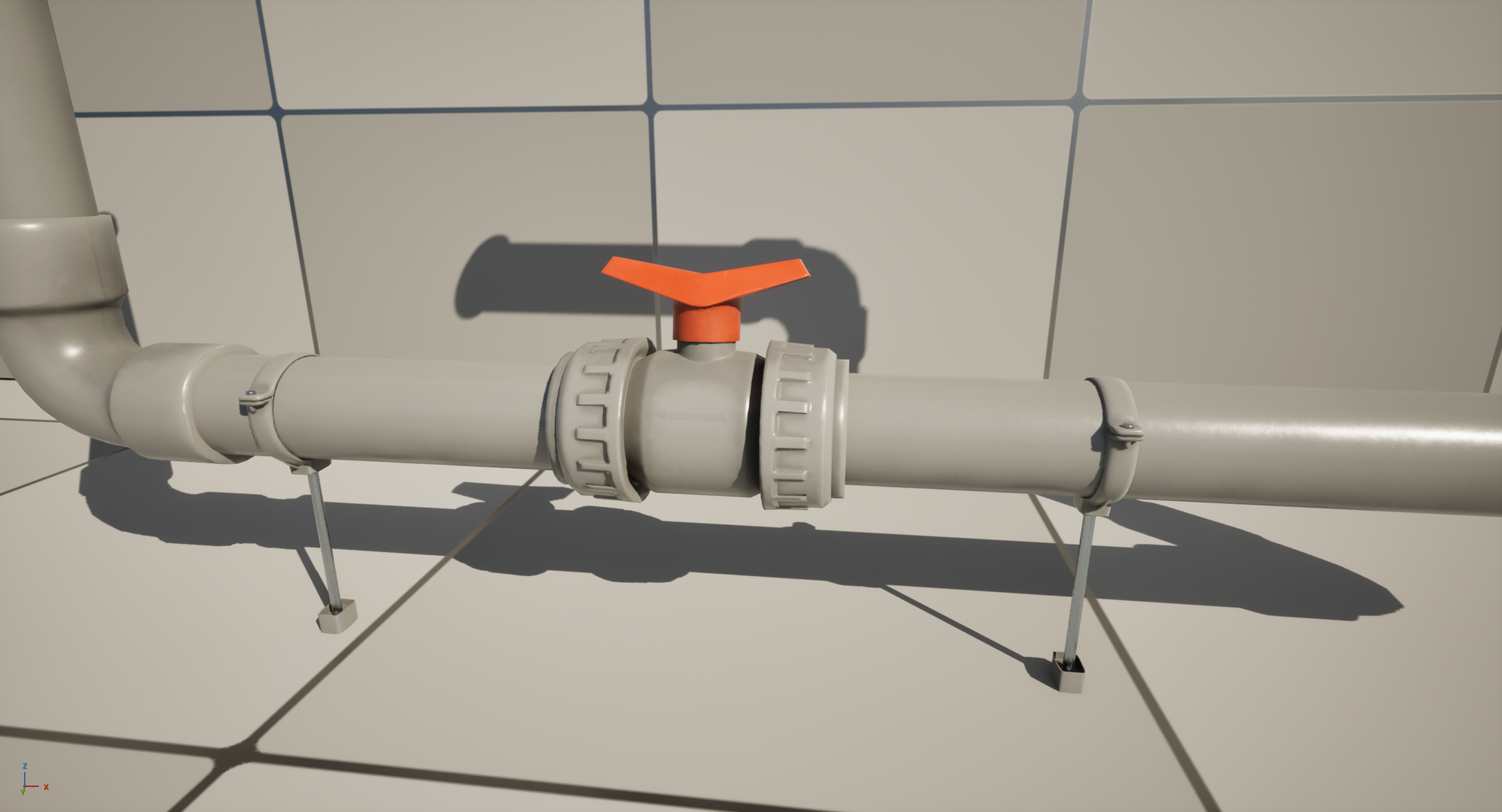
Brackets mid-run: the clamps grip the pipe and their arms reach the floor below.
How a bracket is built
A rendered bracket has three kinds of parts, all from the kit:
- The clamp grips the pipe at the node position.
- Each arm is a line piece stretched from the clamp toward the surface.
- A foot sits at the end of each arm, placed exactly on the surface it hit.
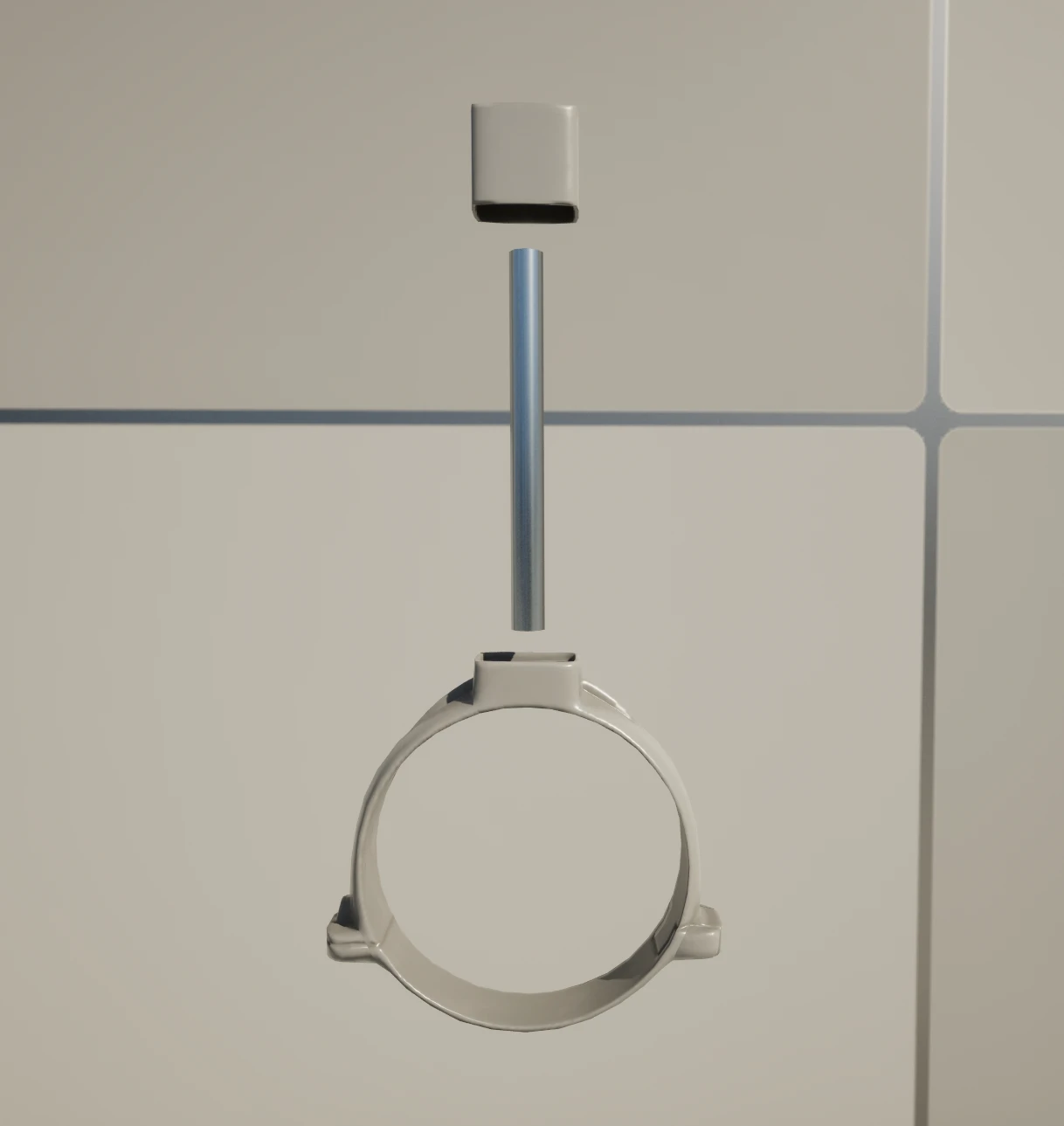
A bracket, exploded: foot, arm, and clamp.
The arm length comes from a trace, so the same bracket reaches a surface 10 cm away or 150 cm away without any manual sizing.
Adding a bracket
Insert a bracket on an edge with Ctrl + Shift + LMB (Cmd + Shift + LMB on macOS), or right-click the edge and choose Insert Bracket Here.
PipeIt traces perpendicular to the pipe and faces the bracket toward the closest surface it finds. If nothing is in range, the bracket faces straight down. The facing is trace-driven: to point a bracket at a different surface, move the pipe (or the surface) so a different side is closest, then let it re-trace.
Inserting a bracket: the preview shows the clamp and its arm reaching for the surface below.
When no surface is in range
Each kit’s bracket entry has a maximum reach (its Max Distance, typically a couple of metres). If no arm finds a surface within it, the bracket renders as a clamp only (no arms, no feet), and a hint tells you the distance that was searched. Either move the pipe closer to the surface, or raise Max Distance on the kit’s bracket entry.
A clamp-only bracket is not stuck: it keeps checking the surfaces it used to grip, so if the wall comes back into range, the arms reattach on their own.
Surface tracking
When a bracket is attached to a surface, PipeIt watches that surface and re-traces automatically when things change:
- the actor the bracket grips moves;
- the pipe itself (or nearby pipe pieces) move;
- the landscape it stands on is sculpted.
You can also force a full re-trace of every bracket in a network with the Refresh Brackets button in the Pipe It category of the details panel.
Excluding actors from bracket traces
Some actors should never receive a bracket (decorations, triggers, helper geometry). Exclude an actor or component from bracket traces with a tag:
| Tag | Effect |
|---|---|
PipeItIgnore or NoBracket | The bracket trace ignores this actor/component. The two tags are interchangeable. |
Add it on the actor’s Tags or a component’s Component Tags.