Docs
Mesh Scale & Render Modes
Sizing pipes independently of the network, and how networks render.
Two kinds of size
Size is controlled in two independent ways:
- Actor transform scale: scales the whole network, including where nodes sit in the world. This changes the network’s footprint.
- Mesh Scale Multiplier: a uniform multiplier on the size of every piece (junctions, pipe edges, brackets, curved runs) without moving any nodes. This makes the pipes fatter or thinner while the layout stays put.
With both set to 1.0, a network looks the way it did before these were separated.
The Mesh Scale Multiplier sits in the Pipe It category of the details panel, next to Pipe Kit and Render Mode. It is uniform only and has a small minimum value.
Render modes
A network can render in one of three modes, set on the Pipe Network actor:
| Mode | What it does |
|---|---|
| Auto (recommended) | Picks the right mode automatically: per-piece components in the editor (so the visualizer, gizmos, and previews work), and at runtime either instanced rendering for non-Nanite kits or per-piece for Nanite kits. |
| Authoring | One static mesh component per piece. Supports per-piece selection, preview overlays, and gizmos. Best for Nanite kits and for networks edited at runtime. |
| Instanced | Groups pieces into instanced static meshes: one draw call per unique kit mesh, with no per-piece editor interactivity. Only worth choosing for non-Nanite kits. |
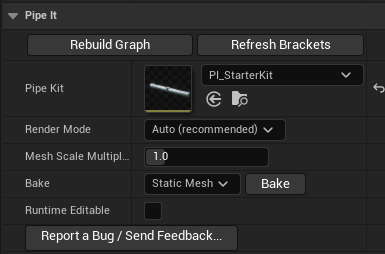
The Pipe It category on a selected network: kit, render mode, mesh scale, the bake row, and the runtime-editable flag.