Docs
Getting Started
Enable the plugin and place your first pipe network.
This page takes you from a fresh project to a pipe network you can edit. It should take about five minutes.
Enable the plugin
If PipeIt is not already active in your project:
- Make sure the plugin is in your project’s
Plugins/folder (or installed to the engine, depending on how you obtained it). - Open Edit → Plugins, search for PipeIt, and tick its checkbox.
- Restart the editor when prompted.
When the plugin is active, a Pipe It button appears in the level-editor toolbar.
Place your first network
The Pipe It toolbar button sits in the main toolbar, just after the Cinematics button and before the play controls. It opens a list of the available kits.

The Pipe It button. It uses a pipe-segment icon and has a dropdown arrow.
-
Click the Pipe It button.
-
Choose a kit from the list. For this guide, pick Starter Kit (
PI_StarterKit).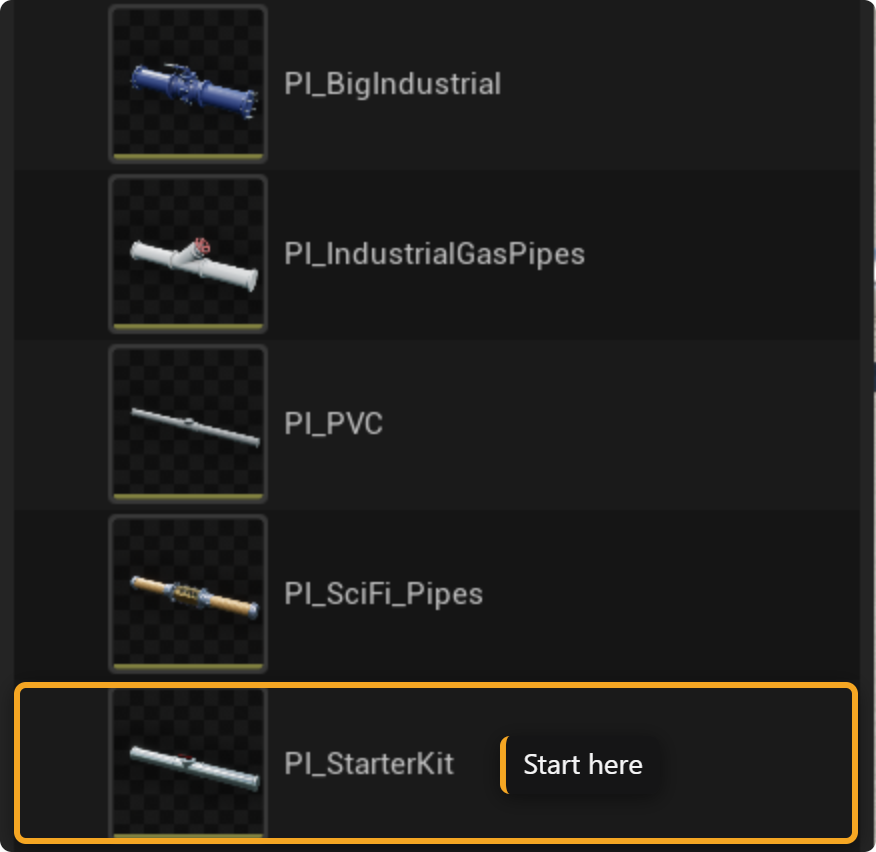
The kit list. PipeIt ships with Big Industrial, Industrial Gas Pipes, PVC, Sci-Fi, and Starter Kit.
-
PipeIt spawns a Pipe Network actor using that kit, selected and ready to edit. It starts as a short piece: a length of pipe capped at both ends.
Extrude a pipe
To extend a pipe, select a piece. The open end shows its gizmo and a green + button:
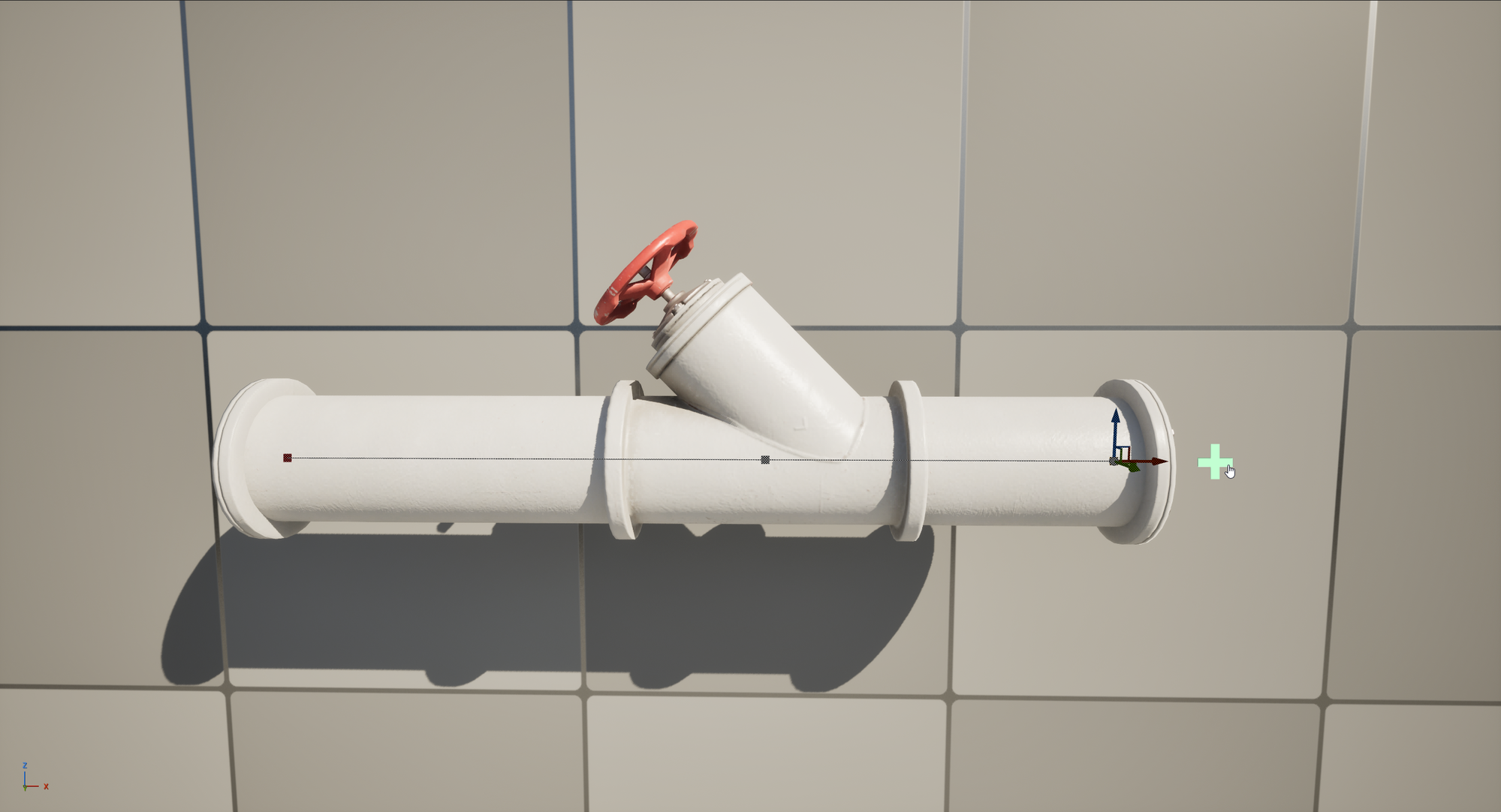
A selected end piece. The green + button extrudes the network from here.
Clicking the + button enters Draw Mode: move the cursor to aim the next segment, press LMB to place it, and keep clicking to chain a run. To leave Draw Mode, press Enter or Esc.
Alternatively, Shift + LMB extrudes a pipe in the direction of the gizmo, without entering Draw Mode.
The full workflow, including snapping and typed lengths, is in Drawing Pipes.
Move and rotate
Pieces are edited with the standard transform gizmo: arrows to translate, rings to rotate. As you drag, the network highlights the nodes the edit will affect, so you always see what is about to move.
Translating and rotating pieces. The highlighted pieces follow the edit.
You cannot break a network: PipeIt validates every edit, so the network is always valid. Translations and rotations are always made relative to the neighbors - move or rotate a piece and the connected pipes stretch, re-route, and swing along with it, with every joint intact.
Where to go next
- Core Concepts: the vocabulary used throughout the guide.
- Drawing Pipes: the full Draw Mode workflow.
- Editing a Network: changing what you have placed.
- The Kits: what each kit looks like.