Docs
Editing a Network
Selecting, inserting, branching, and changing pieces in a network.
Once a network exists, you edit it by selecting nodes and edges and acting on them. PipeIt shows the relevant shortcuts in the hint panel as your selection changes.
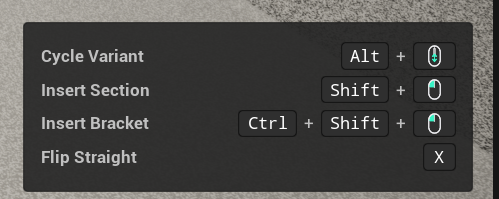
The hint panel, bottom-right of the viewport. Its shortcuts follow your selection.
Selecting
- LMB a piece to select its node or edge.
- Ctrl + LMB to add or remove from a multi-selection.
- Ctrl + Alt + drag to box-select.
- With a node or edge selected, step along the run with , / . (walk the pipe / select end A or B).
Changing a piece
| Action | Input | Applies to |
|---|---|---|
| Cycle mesh variant | Alt + Wheel | node, edge, flexi point |
| Flip a straight piece | X | straight node |
| Roll the pipe around its axis | E | edge |
Changing a piece in place - the run around it stays connected.
The right-click menu
Right-clicking a piece adds a PipeIt section to the context menu with the actions for that piece. It is the discoverable path to everything the shortcuts do, plus a few things only found here:
- Replace Model / Replace Pipe Model: pick a mesh variant from a thumbnail list instead of cycling with Alt + Wheel. Variants whose sockets do not fit the connected pipes are greyed out.
- Insert Straight Here / Insert Bracket Here: on an edge, insert at the cursor position (the same operations as the Shift + LMB shortcuts).
- Convert to Flexi-pipe: on a corner, replace it with a smooth curve. See Flexi Pipes.
- Flip Mesh: on a straight piece, rotate its mesh 180° to swap its ends (same as X). Useful for asymmetric pipes such as reducers and valves.
- Reset Roll: on an edge, set its roll back to 0°.
- Delete: remove the piece. When a node cannot be deleted, the entry is greyed out with the reason in its tooltip.
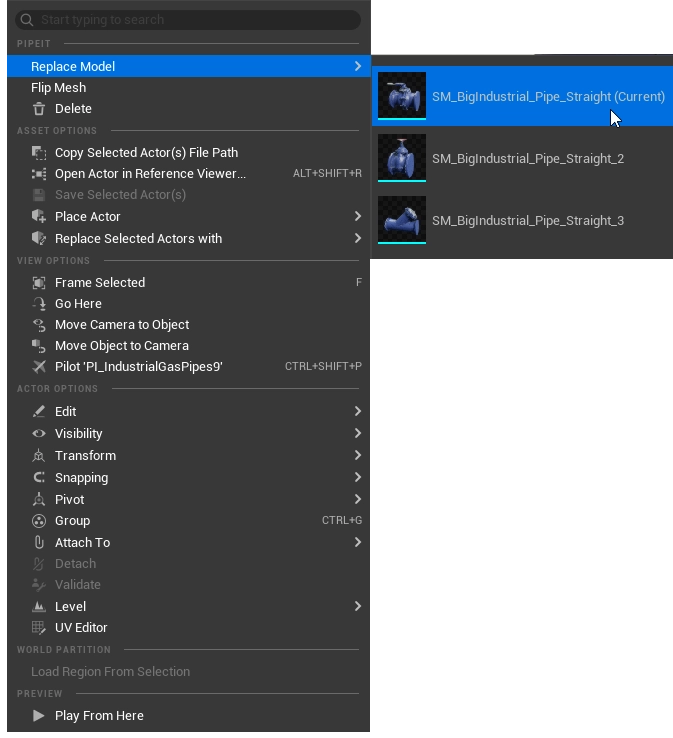
The PipeIt section of the context menu. Replace Model lists the variant thumbnails, with the current one marked.
Adding to a network
| Action | Input |
|---|---|
| Insert a section | Shift + LMB |
| Insert a bracket | Ctrl + Shift + LMB |
Inserting a section adds a node on an existing edge so you can branch or re-route from that point. Brackets mount the pipe to a nearby surface; see Brackets.
Inserting a section on an existing run, then picking its variant.
Working with a multi-selection
| Action | Input |
|---|---|
| Add / remove a node | Ctrl + LMB |
| Box select | Ctrl + Alt + drag |
| Copy | Ctrl + C |
| Paste | Ctrl + V |
| Delete | Del |
| Clear the selection | Esc |
Copy and paste duplicate a chosen part of a network, which is the fastest way to repeat a run or a fitting.
A multi-selection: several pieces selected and edited together.