Docs
The Kits
Opening a kit, editing it in the Pipe Kit Editor, and the kits that ship with PipeIt.
A kit is the set of meshes PipeIt assembles into a network: the junction pieces (caps, straights, corners, tees, crosses), the pipe that spans between them, and the bracket meshes. The kit you choose determines the look of the whole network.
Choosing a kit
The Pipe It toolbar button lists the available kits; the kit you pick is used by the network it spawns. The menu’s Show Plugin Content toggle controls whether the kits that ship with PipeIt are listed alongside any kits in your own project.
Opening a kit
A kit is a regular asset: a Pipe Kit. Double-click one in the content browser to open it in the Pipe Kit Editor. The kits that ship with PipeIt live in the plugin’s content - enable Show Plugin Content in the content browser’s settings to see them. Kits of your own (see Making Your Own Kit) open the same way.
Editing a kit
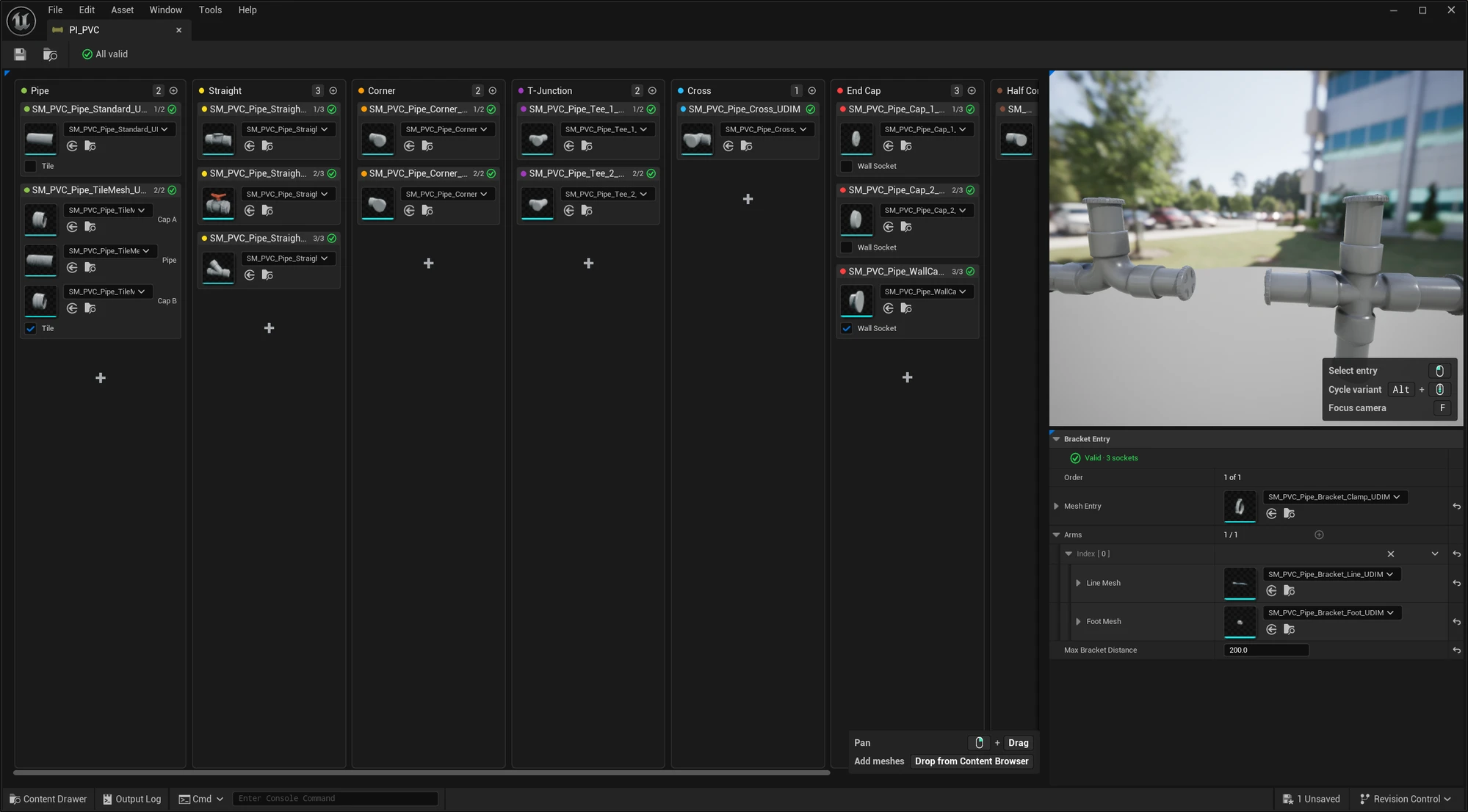
The Pipe Kit Editor: one lane per role, one card per mesh, a live preview, and the selected entry’s details.
The editor is a board with one lane per piece role. Each card is one kit entry: a mesh playing that role. Several cards in one lane are that role’s variants, in the order they cycle with Alt + Wheel.
- Add meshes by dragging them from the content browser onto the board. If a mesh already has sockets, PipeIt detects its role from them; drop onto a specific lane to choose the role yourself.
- Swap a card’s mesh with the mesh picker on the card.
- Per-entry options live on the card and in the details panel: a pipe entry’s Tile option (the pipe tiles along the span instead of stretching), an end cap’s Wall Socket flag (the cap used when a run snaps to a wall), a bracket entry’s Arms (a line mesh and a foot mesh per arm) and Max Bracket Distance.
- The live preview shows the kit assembled: click a piece to select its entry, Alt + Wheel cycles its variants, F focuses the camera.
- Validation: the toolbar button shows All valid or the number of issues, and clicking it jumps to the first problem. Each card carries its own state too.
Edits are normal, undoable asset edits: save the kit like any other asset. To change the meshes themselves (sockets, orientation), see Making Your Own Kit.
Changing a network’s kit
To re-skin an existing network, select it and change the Pipe Kit property in the Pipe It category of the details panel. The layout (every node, edge, and curve) is untouched; only the meshes change. Pieces whose hand-picked variant has no equivalent in the new kit fall back to the new kit’s defaults.
Kits that ship with PipeIt
| Kit | Style |
|---|---|
| Starter Kit | A clean, general-purpose kit. The recommended starting point. |
| Industrial Gas Pipes | Heavy industrial piping with brackets and fittings. |
| Big Industrial | Large-bore industrial pipework with flanged fittings. |
| PVC | Plastic plumbing-style pipes. |
| Sci-Fi | Insulated sci-fi piping. |
The same network, rendered with each kit:
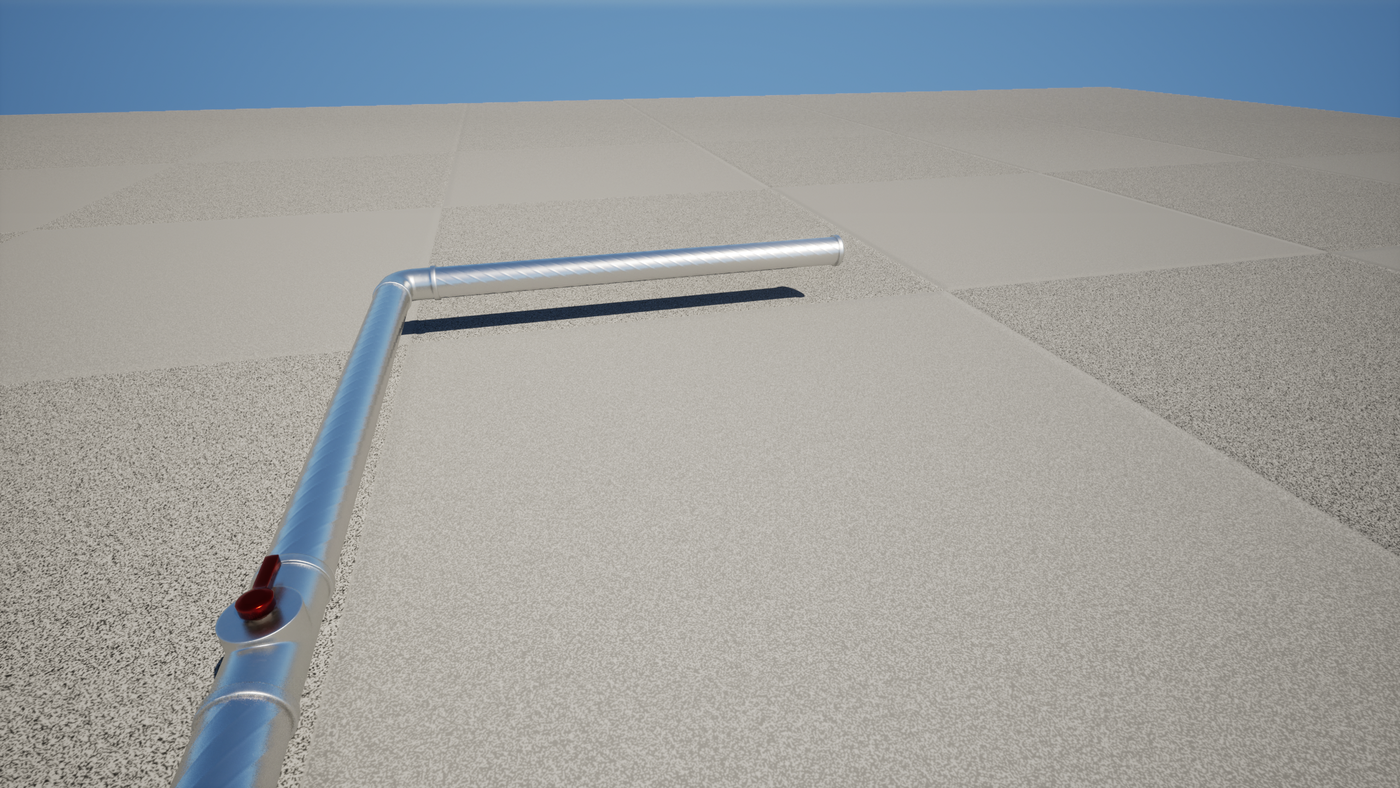
Starter Kit.
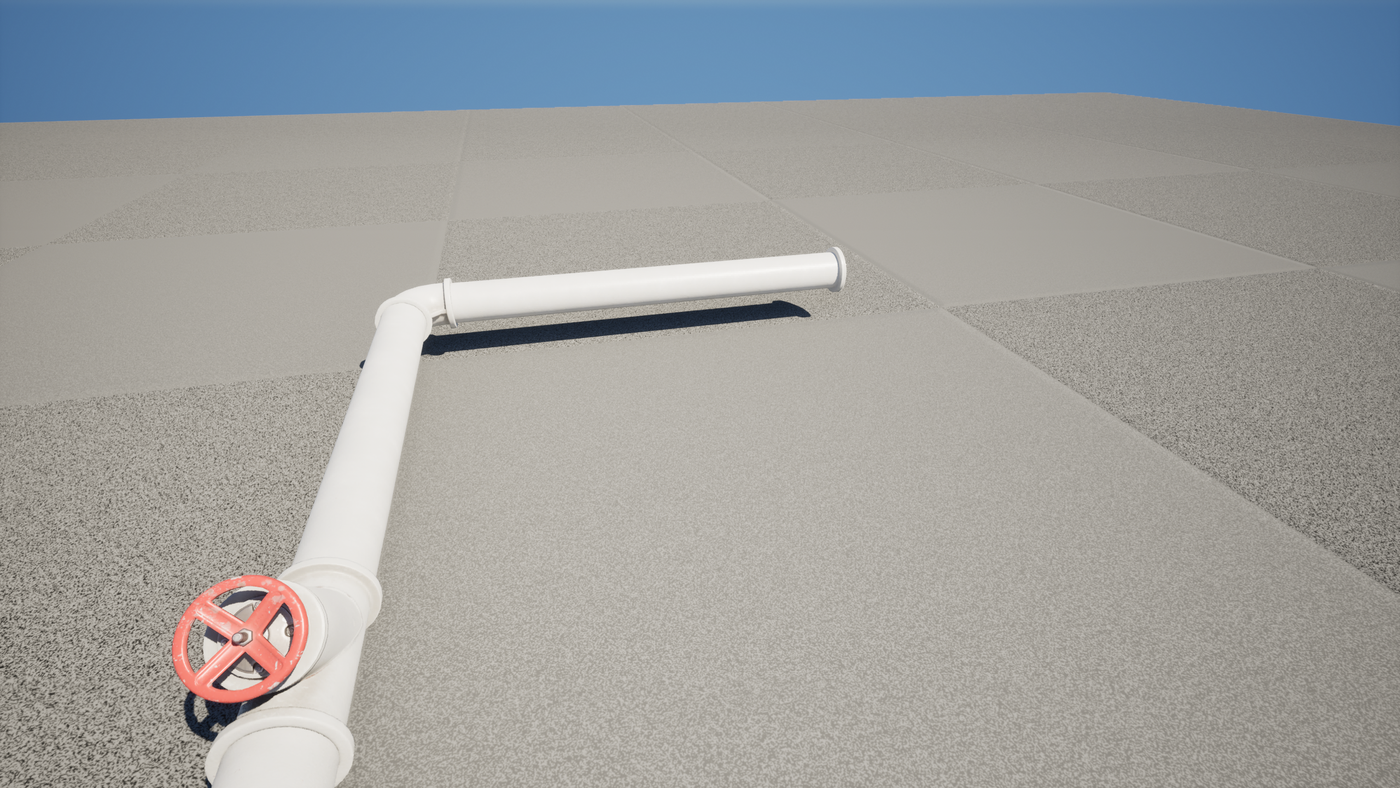
Industrial Gas Pipes.
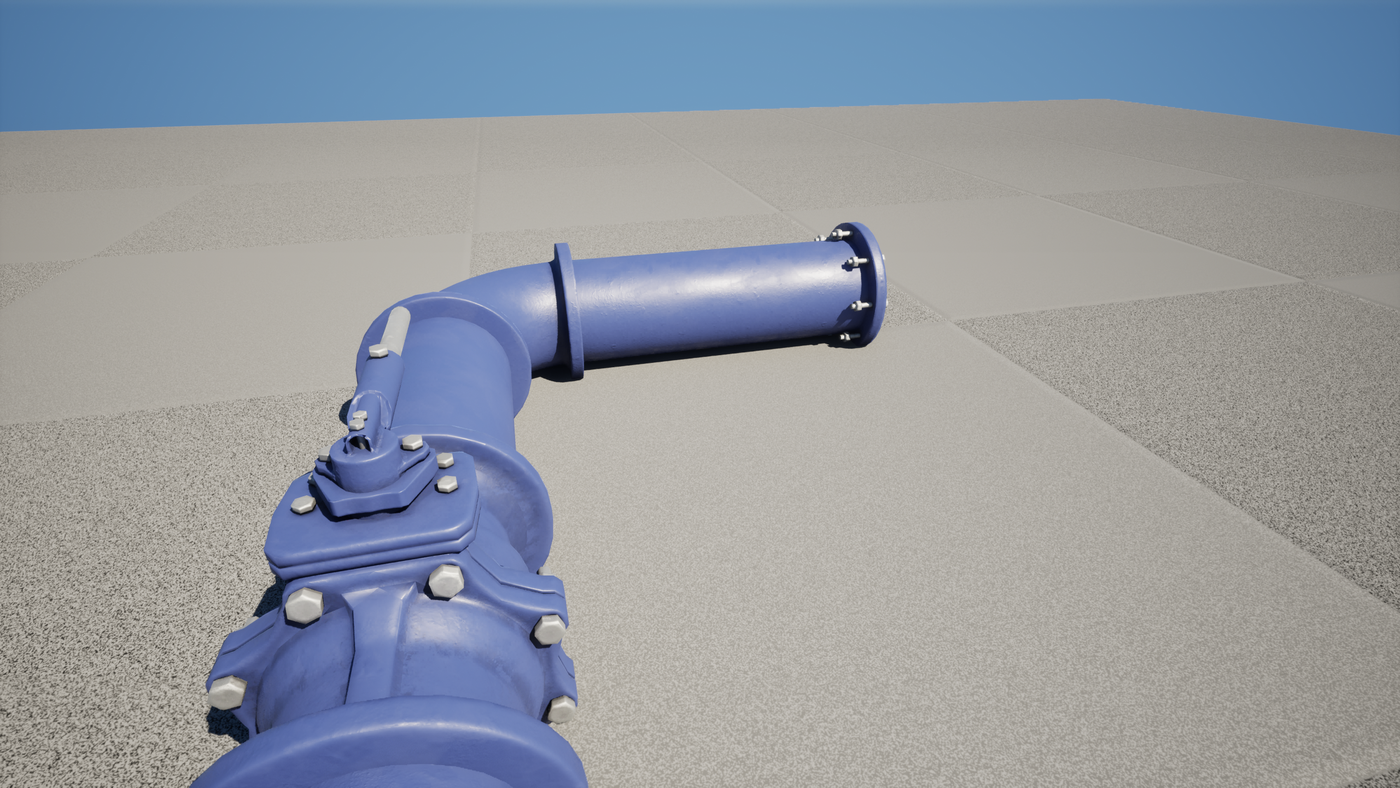
Big Industrial.
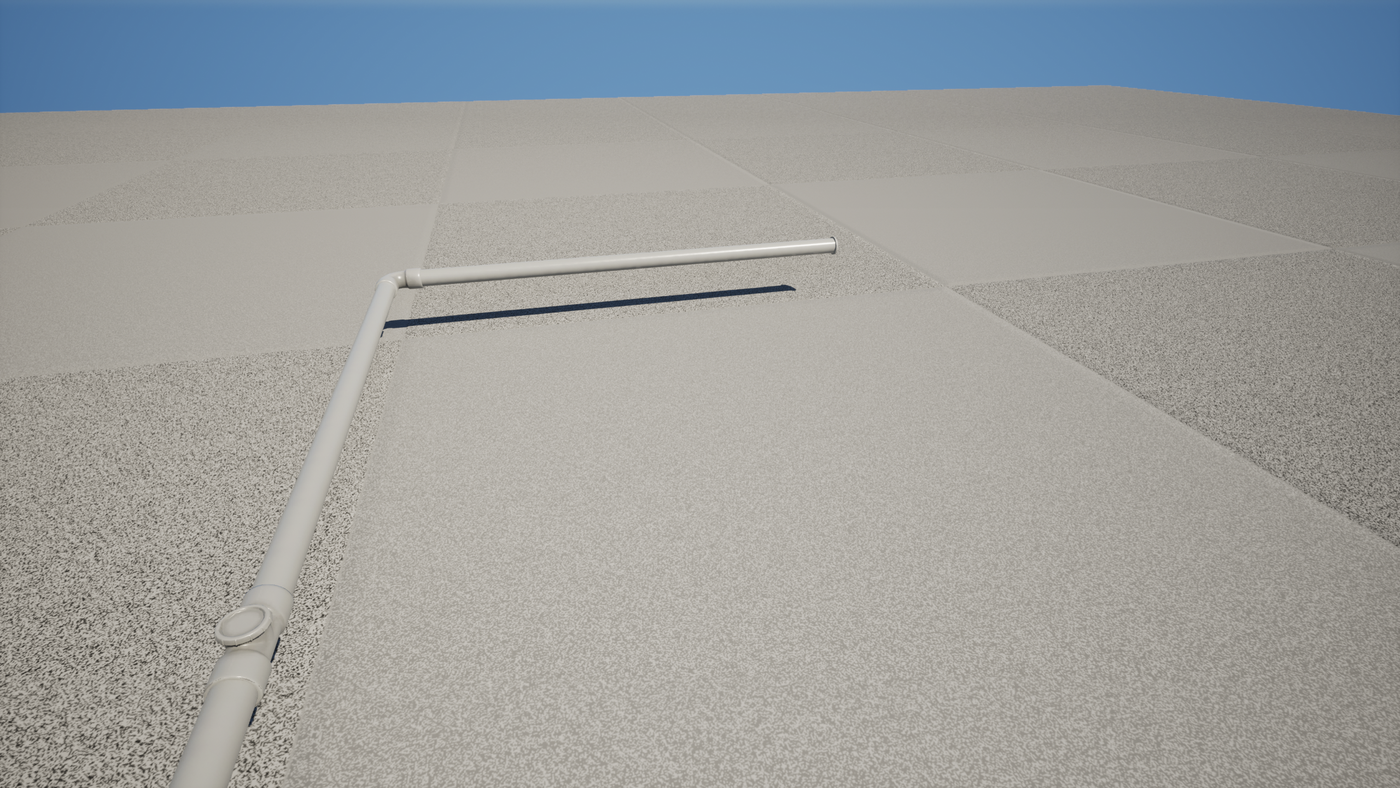
PVC.
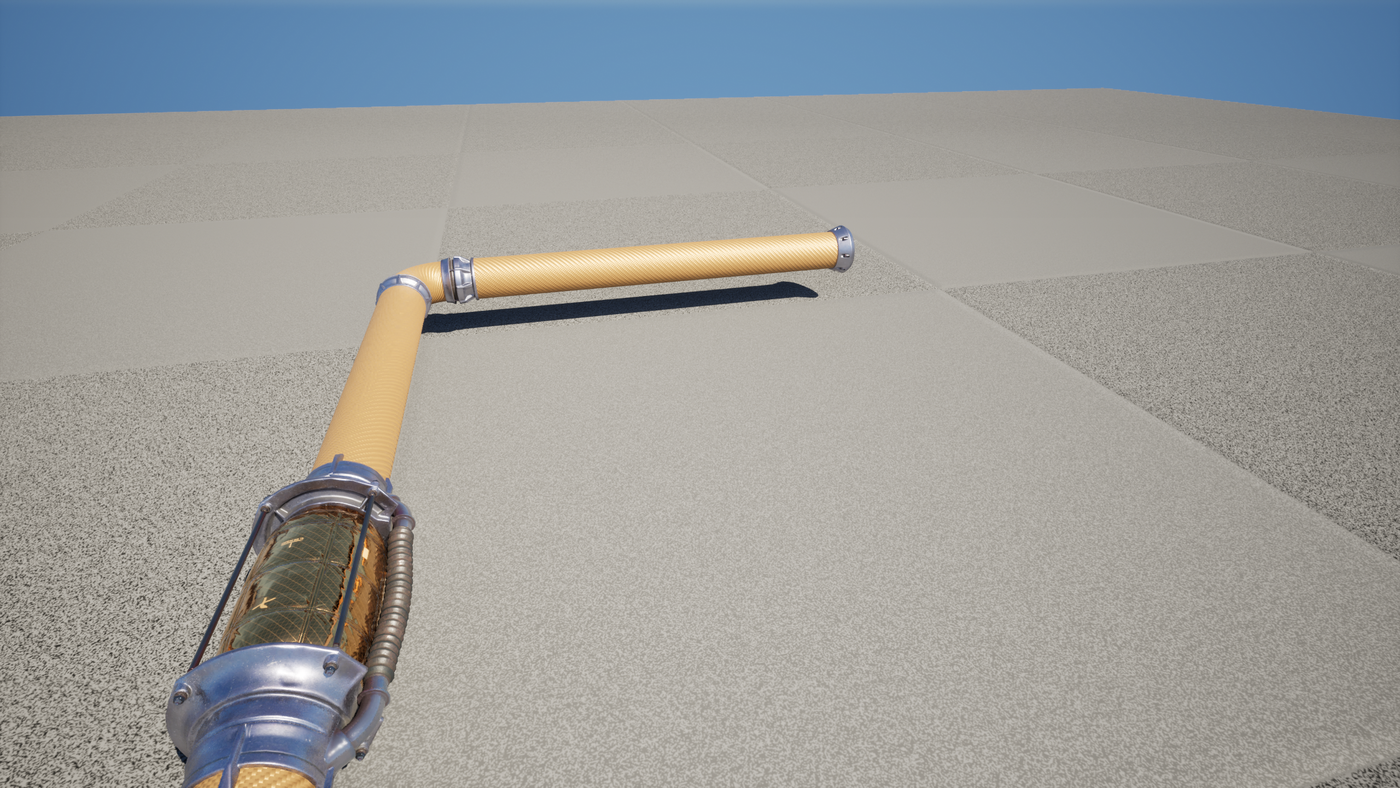
Sci-Fi.